
By: Meredith Kinsey
COO | Digital Site Box
Getting a project live in Digital Site Box is super simple.
- Create the Project
- Go to the Projects tab and click the + sign.
- Enter the project name and address (if there is one).
- Assign the municipality and lock it with a secure PIN if needed.
- Optional: Apply a project template and your folders will be created automatically.
- Attach to Your QR Sign
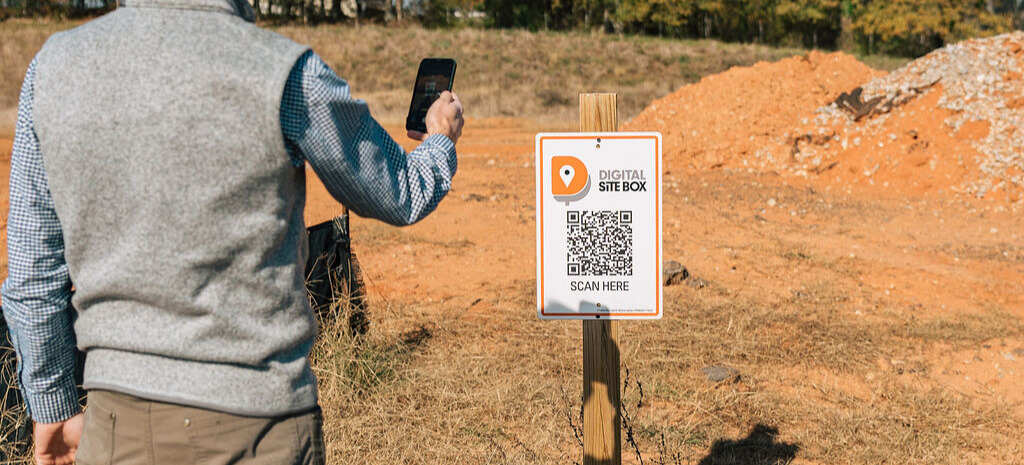
- Click the QR code icon beside the project name and hit Start Scanner to link your project to your Digital Site Box sign.
- Invite Users
- Go to Users, click the airplane icon, enter their email, and hit Send to invite them to your Digital Site Box account.
- Once they accept, you can assign them as an Admin or Manager. If they are an Admin, they will be able to view all projects by default. To assign specific projects to a user, make them a manager and, then click on the folder icon beside their name under Users, and then check the projects they should have access to.
- Install Your Sign
- Install your Digital Site Box sign on site just as you would your old plastic (outdated) permit box.
That’s it. Your project is ready to access from anywhere, and onsite users like inspectors or subs can scan the QR code on site to jump in instantly. Digital permit boxes vs physical permit boxes? No contest.